
Authentication
How teammates sign in to the Rheo dashboard and how app credentials differ from member logins.
Dashboard sign-in
The Rheo dashboard uses your organization's configured sign-in provider (for example email, Google, or SSO). Each teammate signs in with their own account. Workspace membership and role determine which apps, flows, and settings they can access.
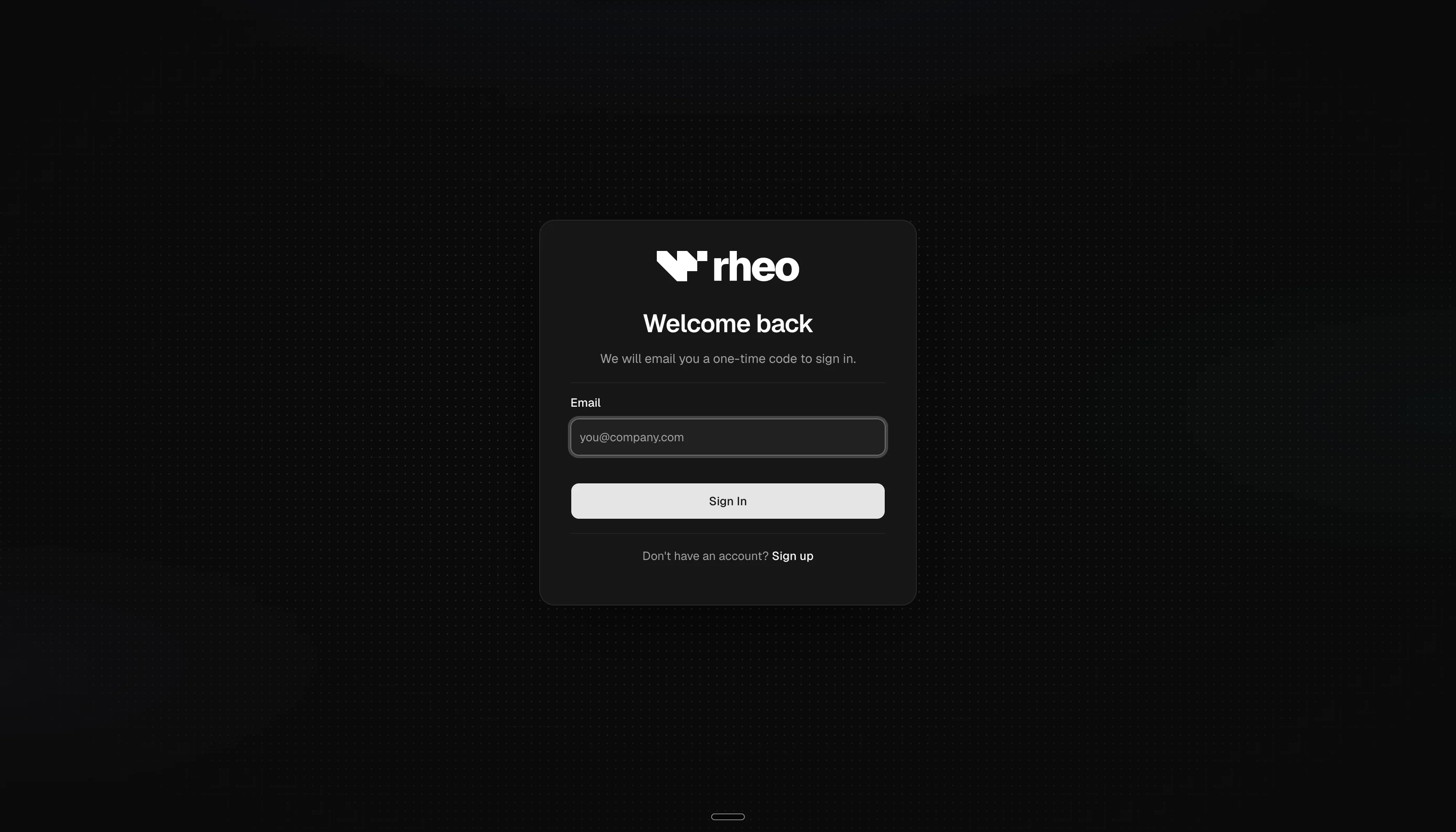
After sign-in, members see only the workspaces they belong to. Switch workspaces from the workspace switcher in the top bar.
Roles and access
Roles (owner, admin, editor, and viewer) control what each member can do in the dashboard. See Members & roles for the full breakdown.
App credentials (not dashboard passwords)
End users in your mobile or web app do not sign in to Rheo with dashboard credentials. Your app connects to Rheo using publishable keys scoped to test or live environments. Create and rotate these keys in each app's settings.
Any workspace member can create CLI API keys under Account → Personal for the Rheo CLI. Those keys are secret, user-bound, workspace-scoped, and distinct from publishable SDK keys. Writes follow the member's live role, including Engage: viewers can read, editors can draft broadcasts and automations, and owners and admins can send.
This separation keeps admin access distinct from in-app traffic. If a publishable key is exposed, rotate it in App settings without changing anyone's dashboard password.
Security practices
Treat the Rheo dashboard like any admin console:
- Use strong passwords and enable multi-factor authentication where your organization supports it
- Offboard teammates promptly when they leave; remove them from Account → Members
- Avoid sharing owner accounts; transfer ownership instead
- Treat CLI API keys like passwords; revoke them when a member leaves or a key leaks