
Channels & rollout
Put published flows in front of the right audiences in test or production — without shipping a new app build.
What channels do
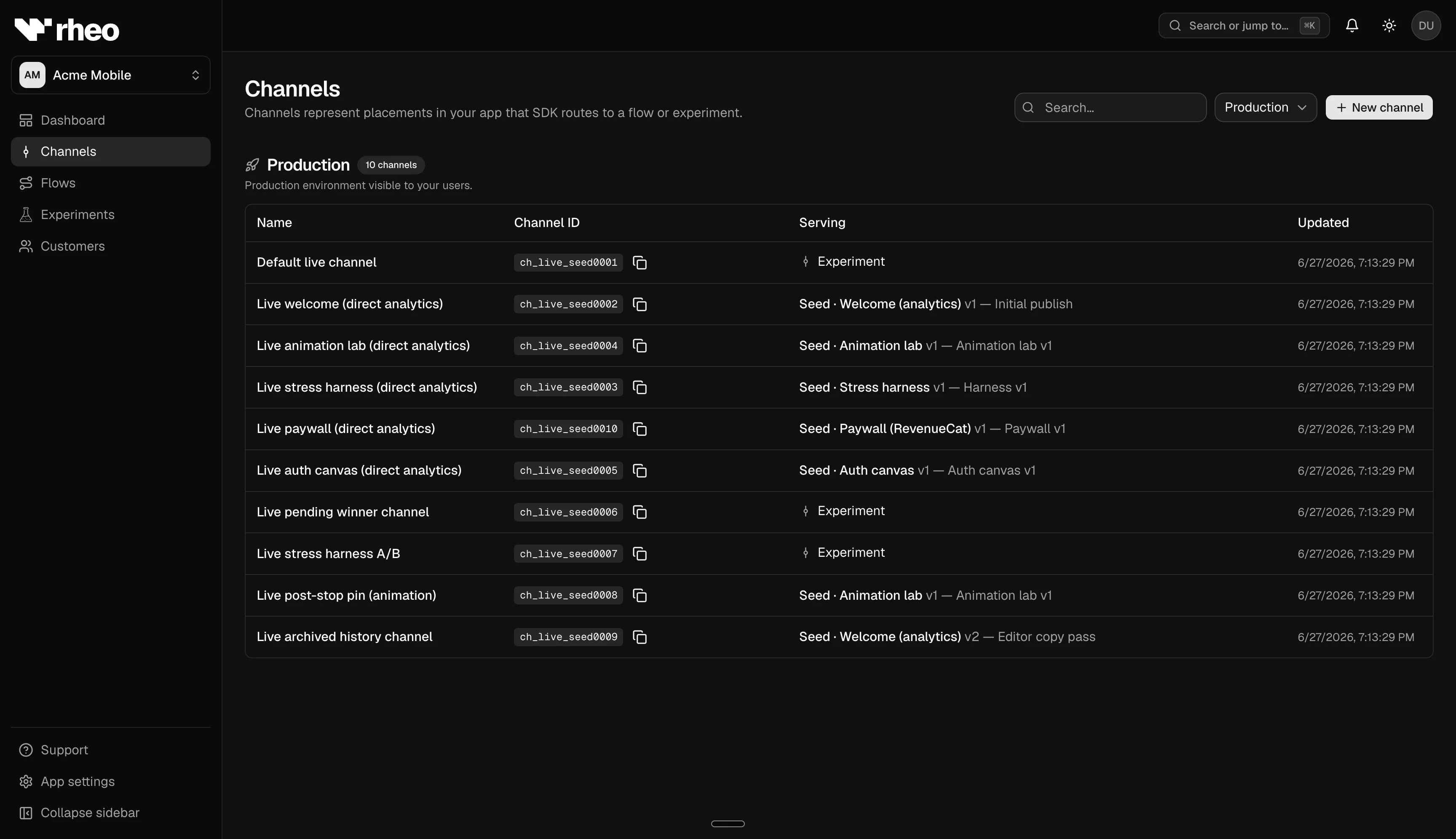
A channel is a named route between your app and a published flow. Your mobile app points the Rheo SDK at one channel id; Rheo serves whatever flow (or experiment) is assigned to that channel.
Channels exist separately in test and live environments. Use test channels for QA and staging. Use live channels for real users.
Publishing a flow does not put it in front of anyone. You publish a new version in the builder, then assign that version to a channel when you are ready. Users pick up the change on their next session — no app store release required.
How your app connects
Your developers configure two things in the SDK:
- Publishable key — identifies your app and whether traffic is test or live
- Channel id — picks which channel within that environment
Rheo looks up the channel's current assignment and returns the right flow. When you change the assignment, Rheo bumps an internal version counter so clients know to refresh.
See Channel (concept) for a short mental model.
Assign a flow directly
- Open Apps → (your app) → Channels and select a channel.
- Choose Direct assignment and pick a published flow version. Drafts cannot be assigned — publish first.
- Confirm. The channel now serves that version to everyone on that channel.
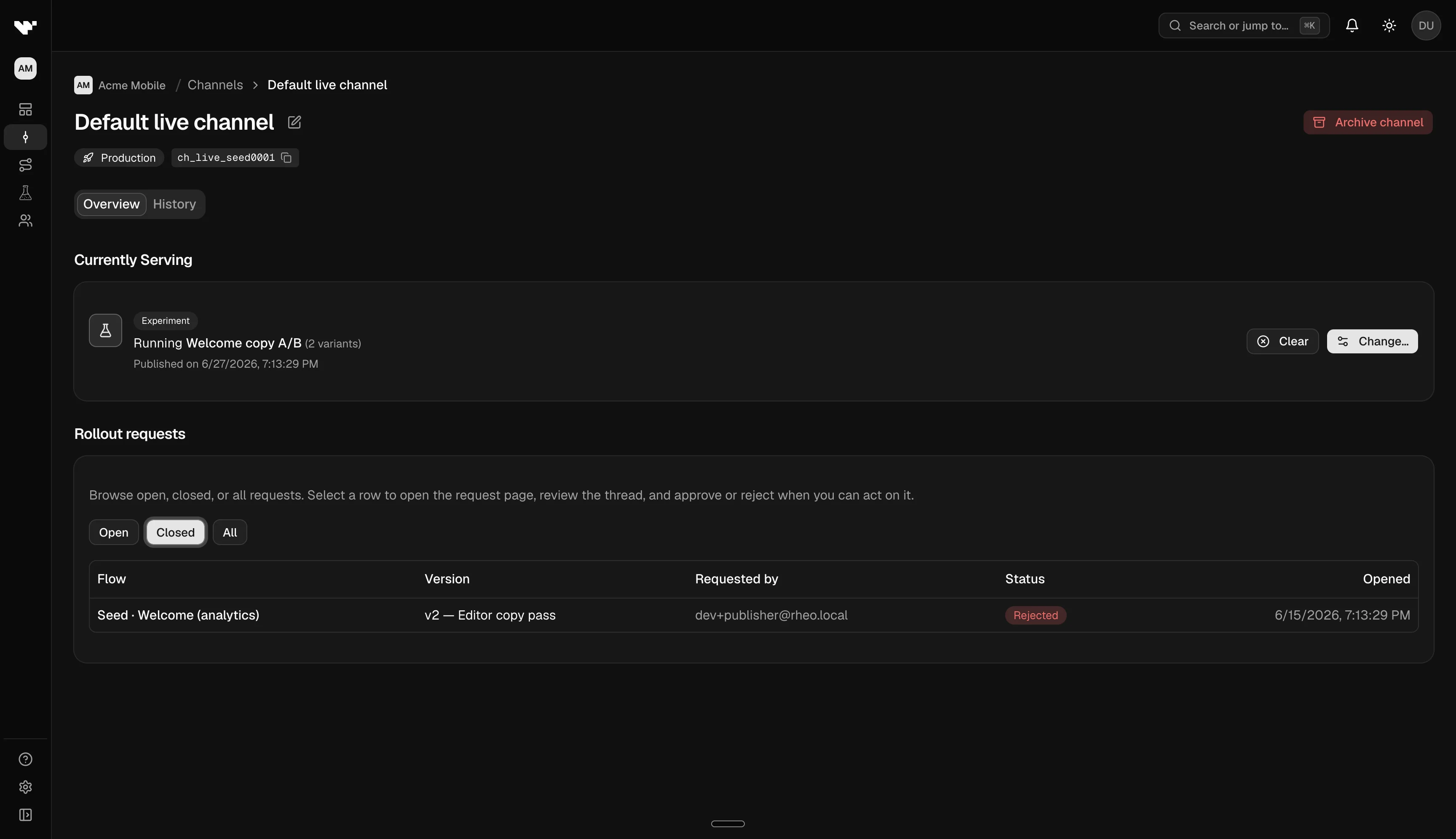
To compare variants instead of picking one flow, attach an experiment to the channel. See Experiments.
Rollout approvals (Scale plan and above)
On Scale and Enterprise plans, workspace owners can require a second pair of eyes before a channel assignment goes live.
Configure the policy at Account → Approvals:
| Setting | What it does |
|---|---|
| Require approval for channel rollouts | Master on/off switch |
| Testing channels | Pins in the test environment need approval when enabled |
| Production channels | Pins in the live environment need approval when enabled |
| Approvers | Selected editor teammates who can approve or reject |
Indie and Grow workspaces see an upgrade prompt instead. Non-owners can view the policy but cannot change it.
Approvals apply to channel assignments only. Editors can still publish new flow versions immediately — only the step of pointing a channel at a version may need sign-off.
When approvals are on
- An editor publishes a flow version (unchanged).
- The editor proposes a new channel pin and adds a short description.
- Approvers get a notification and review the request.
- On approve, the channel updates. On reject, the previous assignment stays in place.
Track open requests from the notification bell or the channel's rollout queue.
Archive old channels
When a launch is done, archive channels you no longer need instead of reusing their names. Archived channels are hidden from normal lists. If an old app build still points at an archived channel, those users will not receive a flow.
Plan limits and permissions
- Editors can assign channels; viewers can see assignments but not change them.
- Channel counts are capped per environment by plan (for example, Indie allows one test and one live channel).
- Rollout approvals require Scale or above. See Plans & entitlements.
Troubleshooting
| Symptom | What to check |
|---|---|
| No versions in the picker | Publish the flow, or fix validation errors in the builder |
| Approval request stuck | Confirm approvers are still editors and the policy covers the right environment |
| Users still see old content | Verify the channel points at the expected published version; ask developers whether the app cached an older manifest |