
Setup wizard
First-time workspace setup after signup and the post-setup getting-started checklist.
Overview
When you create a new Rheo workspace, a short setup wizard walks you through the essentials before you reach the main dashboard. You accept terms, add your name, name your workspace, and create your first app. When setup finishes, Rheo may offer a product tour and shows a Getting started checklist to confirm your app is sending events.
Teammates who join via invitation skip the wizard and land directly on Apps.
Setup steps
The dashboard guides you through these steps in order. If you leave and return before finishing, Rheo picks up where you left off.
| Step | What you do |
|---|---|
| Welcome | Read the intro and accept the Terms and Conditions |
| Profile | Enter your first name (required) and last name (optional) |
| Workspace | Choose a workspace name and optionally upload a logo (up to 10 MB) |
| App | Create your first app — name it and add basic details |
After you create your first app, Rheo opens that app's dashboard and marks setup complete.
Who sees the wizard
The setup wizard appears when you created the workspace and have permission to manage apps. It is meant for the person who signed up and started the workspace.
Invited teammates never see the wizard. They sign in and go straight to Apps.
Post-setup product tour
Once setup is complete, you may see a prompt to explore Rheo further. You can:
- Import your existing flow — bring in a flow you already have (Beta)
- Take a product tour — open an interactive walkthrough in a new tab
- Skip — dismiss the prompt; it will not appear again
See Demo & product tours for more on tours and the demo environment.
Getting started checklist
After setup, eligible users see a Getting started pill at the bottom-right of dashboard pages. It tracks your progress toward connecting the Rheo SDK.
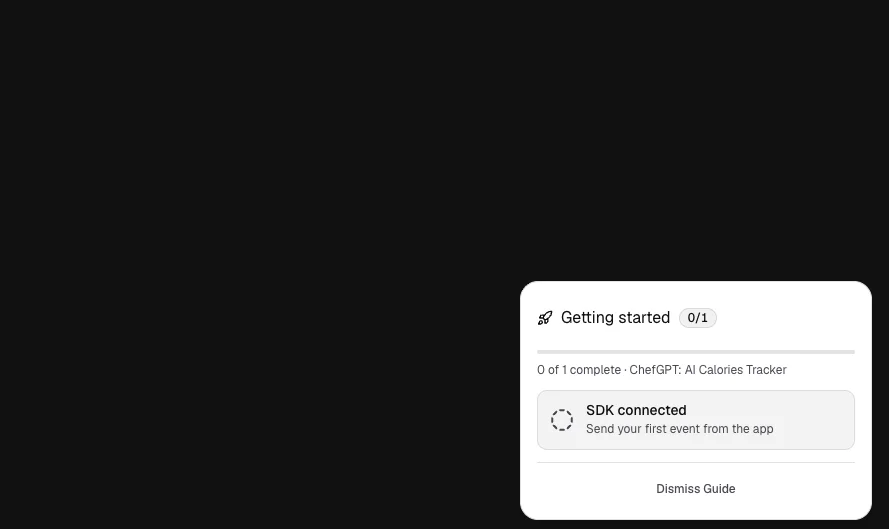
The first task is SDK connected: Send your first event from the app. Rheo marks it complete automatically when it receives at least one event from your workspace's primary app. The checklist links to SDK documentation and your app's API keys when an app exists.
You can dismiss the guide at any time with Dismiss Guide. It hides once all tasks are done or you dismiss it.
Limits
- Only workspace creators on the self-serve path enter the wizard; invited members do not.
- Renaming the workspace during setup requires app-management permission.
- The checklist appears only while tasks remain incomplete and has not been dismissed.
Related
- Store listing — optional App Store or Play Store lookup during app creation
- Demo & product tours
- Account settings