
Rheo AI Agent
Rheo Agent, auto-translate, and AI branding extraction in the dashboard.
Purpose
Rheo offers AI-assisted workflows to speed up onboarding design. These features require a Grow or Scale plan. Rheo runs AI on your behalf — you do not add API keys in the dashboard.
Rheo Agent (flow editor)
Use Rheo Agent to change a flow with natural language while you stay on the canvas.
- Open a flow in the flow editor.
- Open Rheo Agent from the floating button on the canvas (or the left sidebar when open).
- Describe what you want — add screens, adjust copy, restructure layers.
- The agent streams a plan checklist and applies changes to your draft automatically as each step completes.
- Use New chat to reset the conversation. Undo and redo apply per step — each successful tool edit is one undo entry.
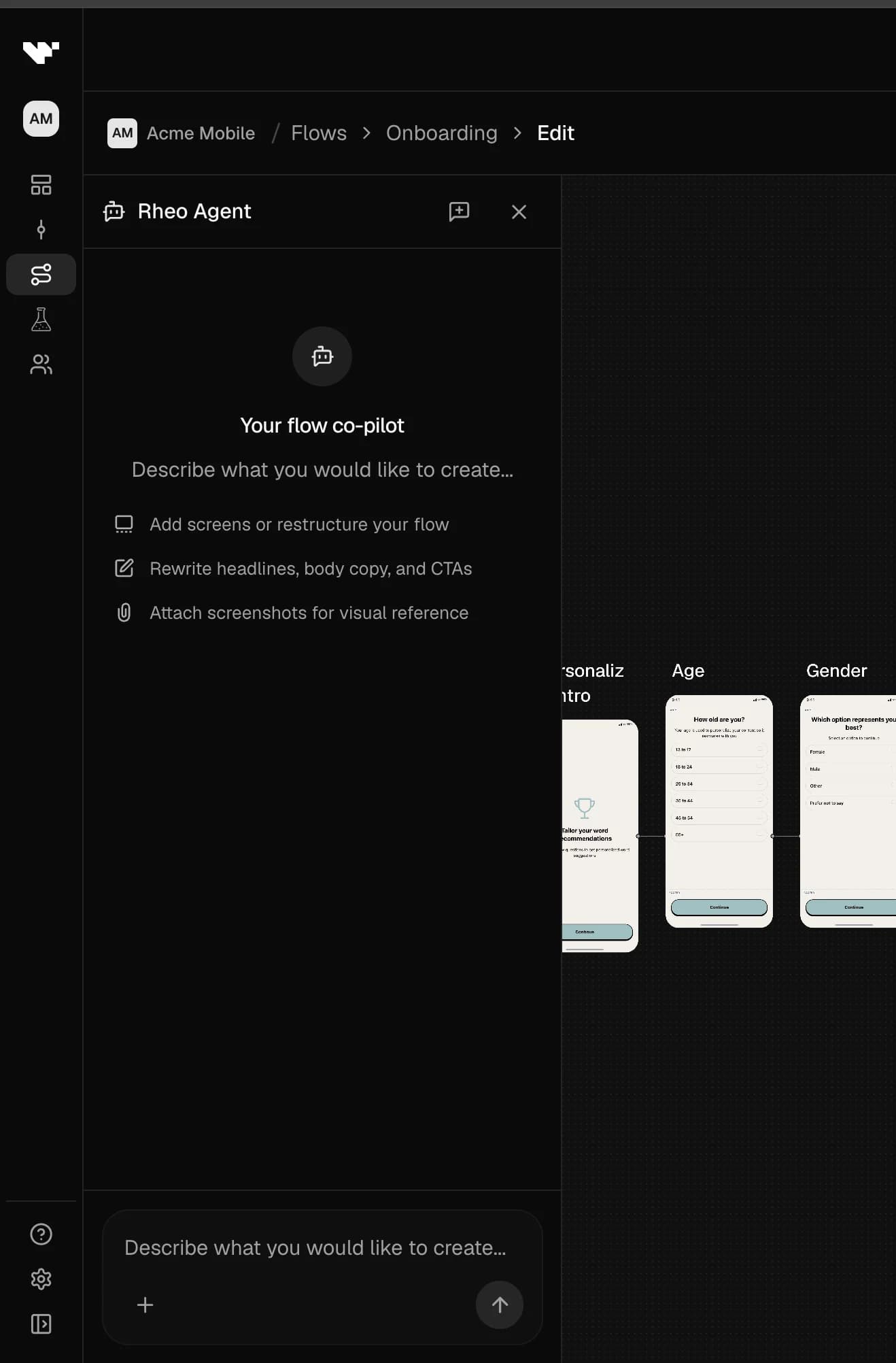
The agent uses your current canvas selection and graph context to make relevant suggestions.
Create flow (templates and import)
From Flows → Create flow you can start blank, from a template, import a bundle, or paste a manifest (see Agent import for CI workflows). Use Rheo Agent in the flow editor to build or extend screens from natural language after the flow exists.
Auto-translate
In Translations mode, Auto-translate fills missing locale strings from your default locale using AI. See Translations.
AI branding extraction
On App settings → App information, under Colors, upload or reference a screenshot to extract brand colors. Results prefill color presets used in flows and in the SDK theme.
Limits and permissions
- Indie plans: AI features are disabled in the UI.
- Flow editing access is required for Rheo Agent.
- Brand color extraction may have daily usage limits per user.
For developers
For CI and automated pipelines, use Agent import and the Manifest Agent Profile instead of the in-dashboard agent.